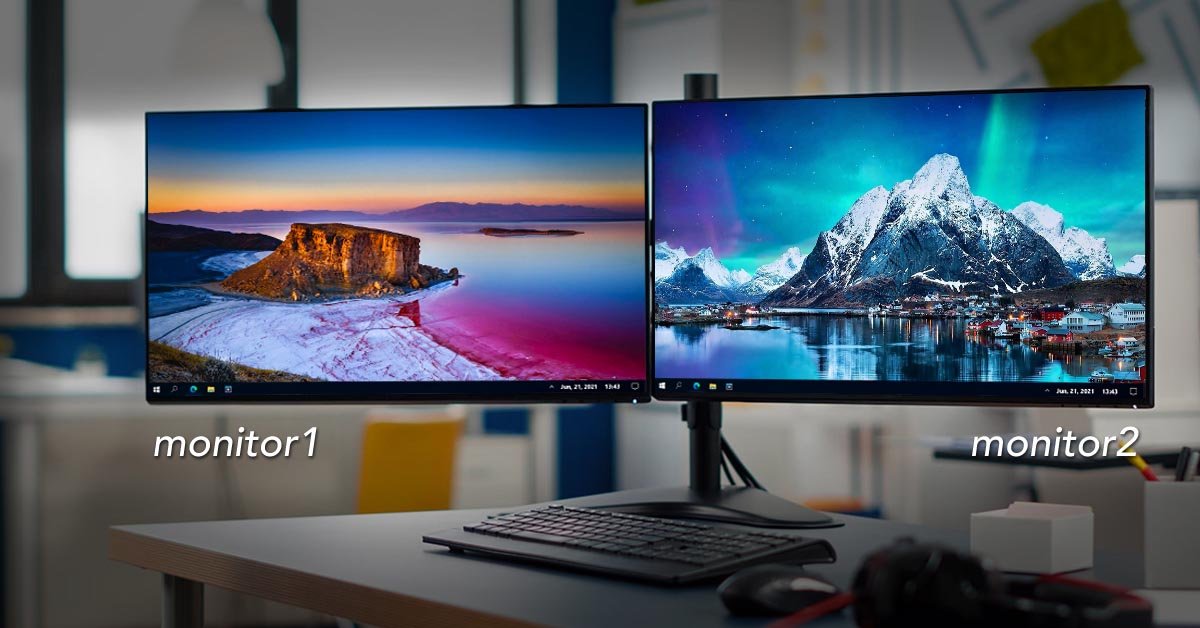
Your computer wallpaper is more than just a background image; it’s a reflection of your personality, a tool to boost focus, and a way to make your digital workspace enjoyable. A carefully chosen wallpaper can influence your mood, inspire creativity, and even enhance productivity. Whether you prefer serene landscapes, minimalist designs, or vibrant animated backgrounds, selecting the right wallpaper is essential for a pleasant computing experience. With the variety of devices and screen resolutions available today, understanding how to find, download, and set the perfect wallpaper has become increasingly important.
In this guide, we’ll explore the different types of wallpapers, tips for choosing high-quality images, methods to set them on Windows and Mac, and strategies for keeping your desktop fresh and visually appealing. By the end, you’ll have a clear roadmap to personalize your computer in a way that’s safe, stylish, and uniquely yours.
What Is a Computer Wallpaper?
A computer wallpaper, also called a desktop background, is the image displayed behind your desktop icons and open windows. While originally intended for aesthetic purposes, modern operating systems allow extensive customization, from static photos to dynamic, changing images. Wallpapers enhance the visual appeal of your computer and can also improve usability by complementing icons and widgets. They are available in various formats, including JPEG, PNG, and GIF, depending on whether they are static or animated.
Also Read : How to Use Unsplash: Ultimate Guide
Why Wallpapers Matter
Personal Expression
Your wallpaper reflects your interests and personality. Whether it’s a favorite movie, travel photo, or abstract artwork, your desktop can tell a story about who you are.
Productivity and Focus
Certain wallpapers, like minimalistic designs or soft-toned images, reduce visual clutter and help you focus on tasks. Conversely, vibrant or dynamic wallpapers can stimulate creativity and energy.
Mood and Motivation
A wallpaper that resonates with you emotionally can uplift your spirits every time you unlock your computer, making mundane tasks more enjoyable.
Also Read : The Ultimate Guide to Finding and Using Public Domain Images
Choosing the Right Wallpaper
Match Your Screen Resolution
To ensure clarity, choose images that match your screen’s resolution. For Full HD screens, use 1920×1080 images; for 4K monitors, 3840×2160 is ideal. High-resolution images prevent pixelation and maintain sharpness.
Consider Style and Theme
Choose wallpapers that reflect your personal style or current mood. Minimalist designs are great for productivity, landscapes are calming, and artistic or abstract images can spark creativity.
Avoid Cluttered Images
Busy wallpapers can make icons hard to read. Clean, simple designs often improve usability while maintaining aesthetic appeal.
Rotation and Slideshow Options
Changing wallpapers regularly keeps your desktop fresh and engaging. Most operating systems allow you to set a folder of images to rotate automatically at specified intervals.
Safe Sources
Always download wallpapers from trusted sources to avoid malware or low-quality images. Stick to reputable platforms that offer verified high-resolution files.
How to Set Wallpapers on Your Computer
Windows (10/11)
-
Right-click on an empty area of the desktop and select “Personalize.”
-
Click “Background” and choose between Picture, Solid Color, or Slideshow.
-
Select “Browse” to pick your image.
-
Choose how the image fits your screen: Fill, Fit, Stretch, or Center.
-
Apply changes.
Shortcut: Right-click an image file and select “Set as desktop background.”
Mac (macOS)
-
Open System Preferences → Desktop & Screen Saver.
-
Select a default wallpaper or click “+” to add your own image.
-
Optionally, use dynamic wallpapers that change based on the time of day.
-
Apply changes to set it as your desktop background.
Linux
Most Linux distributions allow you to right-click the desktop and choose “Change Background” or navigate to system settings to select a wallpaper.
Types of Wallpapers
-
Static Wallpapers: Traditional images like photos or digital artwork.
-
Live / Dynamic Wallpapers: Animated or time-based wallpapers that change automatically.
-
Slideshow Wallpapers: Rotating images from a selected folder.
-
Themed Collections: Curated sets for seasonal, aesthetic, or motivational purposes.
Tips for a Better Desktop Experience
-
Complement Icons: Choose wallpapers that don’t obscure desktop icons.
-
Multi-Monitor Setups: Use images that span all screens or different images per monitor.
-
Keep It Organized: A clean desktop enhances the overall look of your wallpaper.
-
Experiment: Rotate between minimalistic, vibrant, or dynamic designs to keep your workspace engaging.
FAQs
1. What size wallpaper should I use?
Choose a resolution that matches or exceeds your screen resolution to avoid blurriness.
2. Why does my wallpaper look blurry?
Low-resolution images on high-resolution screens appear pixelated. Always use high-quality files.
3. Can I use animated wallpapers on any computer?
Animated wallpapers may require third-party software and may affect performance on older machines.
4. Where can I find quality wallpapers?
Look for trusted sources offering high-resolution images suited to your screen size and style preferences.
5. How can I change wallpapers automatically?
Use slideshow options in your system settings to rotate images at intervals, keeping your desktop fresh.
Read More: How to Use Unsplash: Ultimate Guide
Conclusion
A well-chosen computer wallpaper does more than decorate your screen; it enhances productivity, expresses personality, and can even influence your mood. By selecting high-resolution images that fit your screen, matching wallpapers to your style, and rotating them periodically, you can create a desktop environment that is both functional and inspiring. Safe downloading practices ensure that your system remains secure while still giving you access to stunning visuals.
Whether you prefer static images, dynamic backgrounds, or carefully curated collections, setting the right wallpaper is an easy yet impactful way to personalize your computer. With simple steps for Windows, Mac, and Linux, updating and managing your wallpaper becomes a seamless part of your routine. Embrace creativity, experiment with different styles, and make your desktop an enjoyable space that reflects who you are — a small change that can have a big impact on your computing experience.